How to Create Content?
-
Go to Resolution Template Maker > Content List
-
Find New Content button and click it
-
You need to enter two fields; Content Name & Content
-
To merge the data from your clients' database into the Content, make sure you use ${object} in your sentence. Using this tag will enable you to merge the data from your client's database.
-
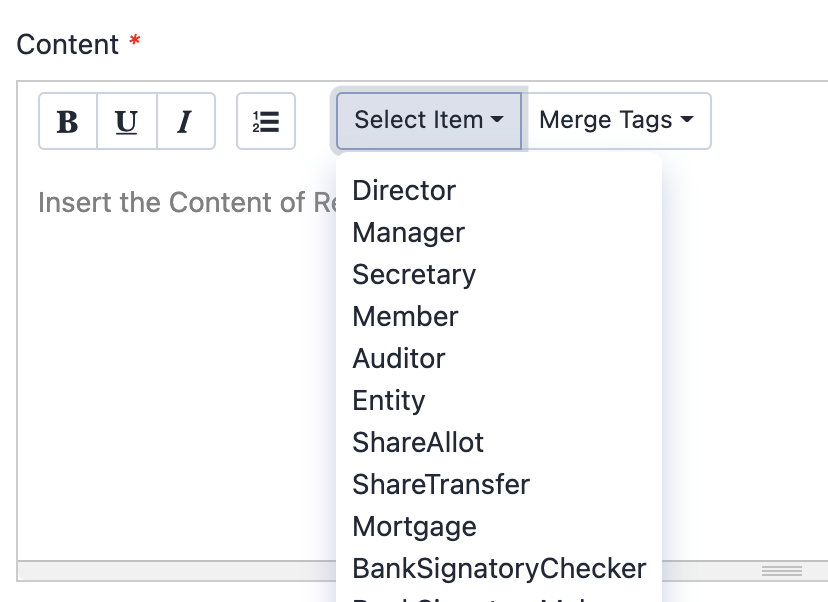
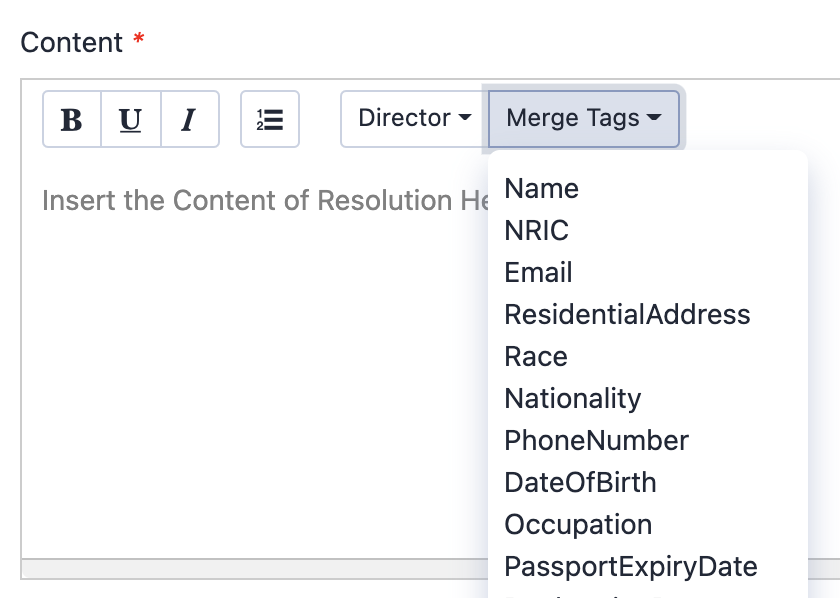
You can find the tag by clicking at Select Item in the content menu bar. It will display the whole list of object available on Officio. For example, Director. You can click on Director. Then select the information you want to merge at Merge Tag dropdown list. It will then automatically generate the tag in your content area.
-
You can place this tag ${object} anywhere in your content.
-
-
Click Save after you have finished writing the Content.

Multiple Data Selection Guide
Content allows you to merge multiple sets of information.
List Joining: Use standard variables (e.g., ${Director_Name}). If you select multiple people, their names will be joined with a comma (e.g., "John, Herdman").
Indexed Mapping: Use indexed variables to map to specific selections order (e.g., ${Director_Name_1} for 1st selected, ${Director_Name_2} for 2nd selected).
Loop / Repeater: Use {{#each Director}}...{{/each}} to repeat a block for each selected item. Works for any key type (Director, Manager, Secretary, Member, etc.). Variables inside the block (e.g., ${Director_Name}) are replaced per-item. Use the Insert Loop button in the toolbar.